ROCm and Vulkan on Ubuntu VM on FreeBSD with Bhyve GPU Passthrough
With FreeBSD 15 and bhyve hypervisor you can can run and serve GPU powered local AI and compute services such as llama.cpp using ROCm and Vulkan with AMD GPUs and Ubuntu Linux VM
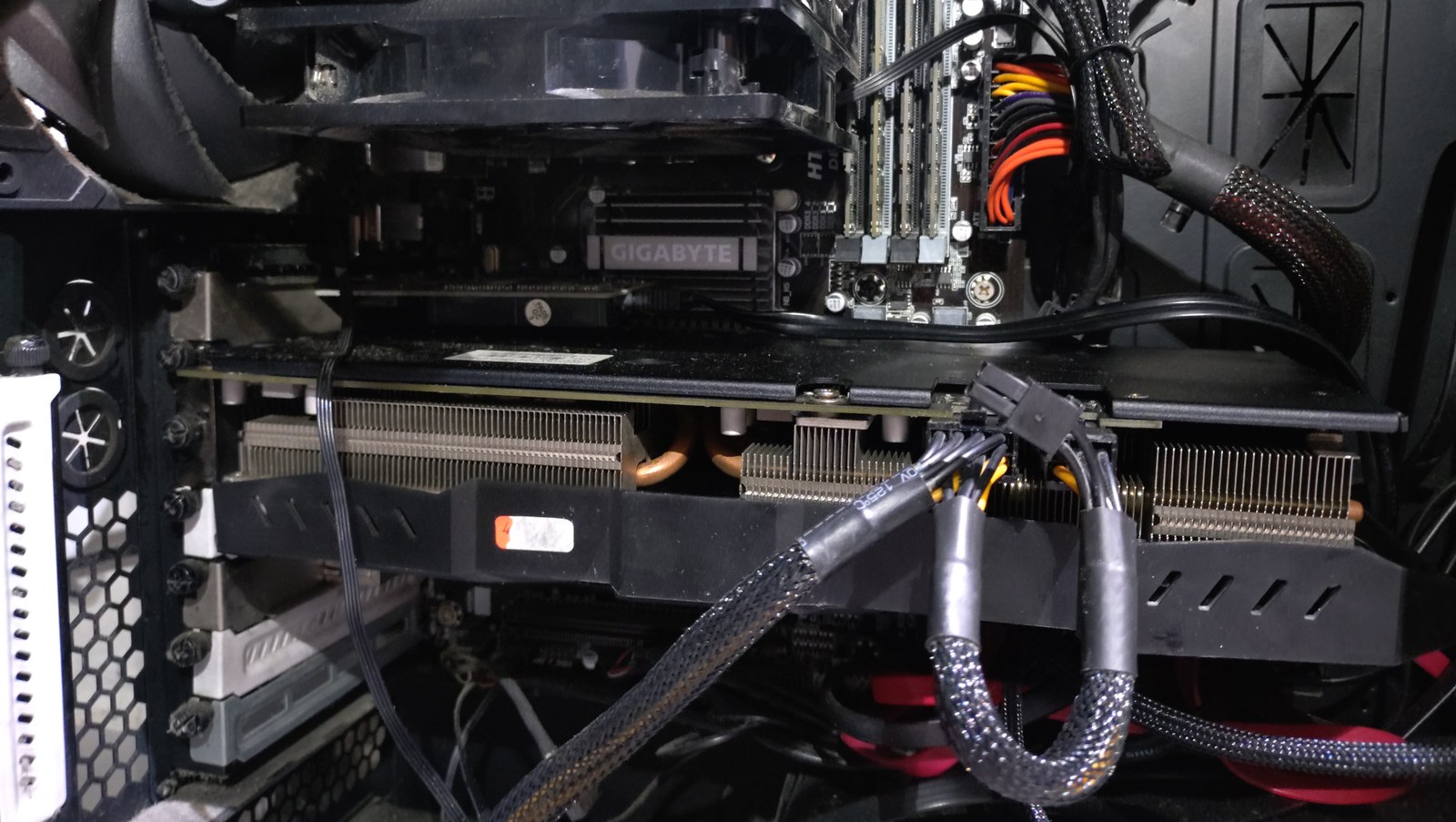
My home server, is an ancient AMD FX 6300 on an AM3 motherboard (PCIe 2.0), currently running FreeBSD 15.0 and serving as a firewall router, NAS and media server. The hardware is still more than capable of doing this, but it will eventually be due for an upgrade to run on more modern and power efficient CPUs.
In planning for those future upgrades though, I would like to see if it can also handle current and future home server needs, which will include local AI and compute services. Native hardware and software support for this probably won't be coming to FreeBSD anytime soon, so it will need to be served via a Linux VM using FreeBSD's bhyve hypbervisor and GPU passthrough. This post by Pierre at Signal.eu showed that this is possible.
To test it out, I decided to get a cheap second hand AMD Radeon 5700 XT with 8GB of VRAM and fast bandwidth. Pretty sure it was probably used in a bitcoin mining rig at some point. In any case it's still working, and could boot up in that ancient PCIE 2.0 16x slot, replacing the old Radeon HD 5450 GPU.
Thankfully it worked, the motherboard supports AMD-vi for IOMMU virtualization. The newer GPU is seen as a standard video device in FreeBSD, so all is well.
Setup on FreeBSD Host
First make sure you can ssh into host, once you've configured the ppt passthrough driver, as soon as it's loaded, you won't get video out any more on FreeBSD. I think you can bypass via single user mode or blacklisting the pptdev module using loader prompt, but avoided having to troubleshoot this, by making sure I could just ssh in from my other computers.
loader.conf
Check which PCI id your GPU is using pciconf -lv | less it'll be something like this:
videopci0@pci0:3:0:0:        class=0x030000 rev=0xc1 hdr=0x00 vendor=0x1002 device=0x731f subvendor=0x1002 subdevice=0x0b36
    vendor     = 'Advanced Micro Devices, Inc. [AMD/ATI]'
    device     = 'Navi 10 [Radeon RX 5600 OEM/5600 XT / 5700/5700 XT]'
    class      = display
    subclass   = VGA
hdac@pci0:3:0:1:        class=0x040300 rev=0x00 hdr=0x00 vendor=0x1002 device=0xab38 subvendor=0x1002 subdevice=0xab38
    vendor     = 'Advanced Micro Devices, Inc. [AMD/ATI]'
    device     = 'Navi 10 HDMI Audio'
    class      = multimedia
    subclass   = HDA
Then edit your /boot/loader.conf to enable passthrough, vm and AMD-vi support:
# Enable AMD-Vi support and passthrough
vmm_load="YES"
hw.vmm.amdvi.enable="1"
pptdevs="3/0/0 3/0/1"
After rebooting and login in via ssh remotely, pciconf -lv should now show that the GPU is on passthrough devices:
ppt0@pci0:3:0:0:        class=0x030000 rev=0xc1 hdr=0x00 vendor=0x1002 device=0x731f subvendor=0x1002 subdevice=0x0b36
    vendor     = 'Advanced Micro Devices, Inc. [AMD/ATI]'
    device     = 'Navi 10 [Radeon RX 5600 OEM/5600 XT / 5700/5700 XT]'
    class      = display
    subclass   = VGA
ppt1@pci0:3:0:1:        class=0x040300 rev=0x00 hdr=0x00 vendor=0x1002 device=0xab38 subvendor=0x1002 subdevice=0xab38
    vendor     = 'Advanced Micro Devices, Inc. [AMD/ATI]'
    device     = 'Navi 10 HDMI Audio'
    class      = multimedia
    subclass   = HDA
Installing Ubuntu Linux with vm-bhyve
I use vm-bhyve to manage FreeBSD VM's it's really easy to setup. Just pkg install vm-bhyve See the documentation linked earlier for instructions, you need to do a uefi install.
Copy the linux.conf in /usr/local/share/examples/linux.conf to <your vm dir>/vm/.templates as say ubuntu-gpu.conf and download the Ubuntu server ISO to <your vm dir/vm/.iso/ I recommend using the latest Ubuntu Server 26.04 LTS as it has AMD ROCm stack and latest vulkan dev libs, which makes installation really easy.
Example of my bhyve template conf, with ZFS and GPU passthru. You only need to add the passthru lines to the existing examples.
graphics="yes"
graphics_listen="127.0.0.1"
#xhci_mouse="yes"
loader="uefi"
cpu="4"
memory="16G"
network0_type="virtio-net"
network0_switch="public"
disk0_type="virtio-blk"
disk0_name="disk0.img"
# GPU passthru
passthru0="3/0/0"
passthru1="3/0/1"
You're going to need to have remote VNC desktop viewer to complete the install. Note you must start the VM with graphics, or the passthrough will not work. Ideally you would have integrated graphics, because if you need to use graphical install for another VM then it'll interfere with the GPU and it'll stop showing up in your GPU passthrough VM.
I'd recommend you also install openssh-server during the Ubuntu VM install and note down the IP address so you can also ssh into it later instead of using VNC.
If all goes well and you boot the VM for the first time, you will actually also get the ubuntu login prompt of the VM if you plug in HDMI or DP cable to your GPU.
Checking and setting up the Ubuntu VM for AI and compute
If the passthrough is working, lspci -v in the Ubuntu VM should give you this:
00:06.0 VGA compatible controller: Advanced Micro Devices, Inc. [AMD/ATI] Navi 10 [Radeon RX 5600 OEM/5600 XT / 5700/5700 XT] (rev c1) (prog-if 00 [VGA controller])
        Subsystem: Advanced Micro Devices, Inc. [AMD/ATI] Reference RX 5700 XT
        Flags: bus master, fast devsel, latency 0, IRQ 38
        Memory at 800000000 (64-bit, prefetchable) [size=256M]
        Memory at 810000000 (64-bit, prefetchable) [size=2M]
        I/O ports at 2000 [size=256]
        Memory at c2000000 (32-bit, non-prefetchable) [size=512K]
        Expansion ROM at 000c0000 [virtual] [disabled] [size=128K]
        Capabilities: <access denied>
        Kernel driver in use: amdgpu
        Kernel modules: amdgpu

00:06.1 Audio device: Advanced Micro Devices, Inc. [AMD/ATI] Navi 10 HDMI Audio (prog-if 00 [HDA compatible])
        Subsystem: Advanced Micro Devices, Inc. [AMD/ATI] Navi 10 HDMI Audio
        Flags: bus master, fast devsel, latency 0, IRQ 37
        Memory at c2080000 (32-bit, non-prefetchable) [size=16K]
        Capabilities: <access denied>
        Kernel driver in use: snd_hda_intel
        Kernel modules: snd_hda_intel
Building llama.cpp with vulkan
For now AMD ROCm isn't supported for many older RDNA 1 and 2 cards. But it does have Vulkan support, so you cnd run GPU accelerated AI inference with llama.cpp compiled with vulkan.
First make sure your user is part of the video and render groups;
sudo usermod -a -G video,render $LOGNAME
Then install requirements you need to build llama.cpp with vulkan:
sudo apt install libvulkan-dev glslc spirv-headers cmake build-essential vulkan-tools
You should be able to check that the GPU is detected and supported by vulkan by running:
vulkaninfo --summary

Devices:
========
GPU0:
        apiVersion         = 1.4.335
        driverVersion      = 26.0.3
        vendorID           = 0x1002
        deviceID           = 0x731f
        deviceType         = PHYSICAL_DEVICE_TYPE_DISCRETE_GPU
        deviceName         = AMD Radeon RX 5700 XT (RADV NAVI10)
        driverID           = DRIVER_ID_MESA_RADV
        driverName         = radv
        driverInfo         = Mesa 26.0.3-1ubuntu1
        conformanceVersion = 1.4.0.0
        deviceUUID         = 00000000-0000-0000-0600-000000000000
        driverUUID         = 414d442d-4d45-5341-2d44-52560000000
Note sometimes it doesn't always work, try stopping, and restarting the VM again, if you are only getting CPU0 device and not the GPU as well.
Checkout and build llama.cpp with vulkan support
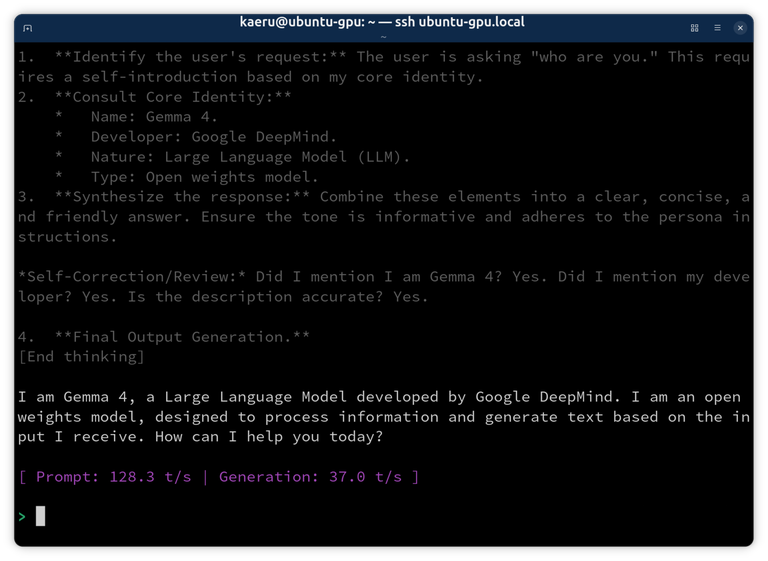
And it should work:
llama-cli -hf unsloth/gemma-4-E4B-it-GGUF:Q4_K_M
While AMD RDNA 1 GPUs are not officially supported by the ROCm stack, by installing the system ROCm 7.1 on Ubuntu 26.04 you can see that ROCm also works via passthrough and you can see it detect the card with rocminfo:
 ISA 2
      Name:                    amdgcn-amd-amdhsa--gfx10-1-generic:xnack-
      Machine Models:          HSA_MACHINE_MODEL_LARGE
      Profiles:                HSA_PROFILE_BASE
      Default Rounding Mode:   NEAR
      Default Rounding Mode:   NEAR
      Fast f16:                TRUE
      Workgroup Max Size:      1024(0x400)
      Workgroup Max Size per Dimension:
        x                        1024(0x400)
        y                        1024(0x400)
        z                        1024(0x400)
      Grid Max Size:           4294967295(0xffffffff)
      Grid Max Size per Dimension:
        x                        2147483647(0x7fffffff)
        y                        65535(0xffff)
        z                        65535(0xffff)
      FBarrier Max Size:       32
For now this gives additional local AI inference capacity for small 4-7B models, and also for embedding and reranking services to supplement the GPU in on my main workstation. While waiting out the hardware shortages for hopefully the next year or so, I can now plan for future hardware upgrades to run local AI and other GPU compute services, while keeping FreeBSD as the operating system for my home server.